本文由 简悦 SimpRead 转码, 原文地址 github.com
Make typesetting LaTeX as fast as handwriting through snippets_ text expansion_ and editor enhancements
A plugin for Obsidian that aims to make typesetting LaTeX math as fast as handwriting.
============================================================================================
一个用于 Obsidian 的插件,旨在使排版 LaTeX 的数学速度与手写速度一样快。
Inspired by Gilles Castel’s setup using UltiSnips.
灵感来自 Gilles Castel 使用 UltiSnips 的设置。

The plugin’s main feature is snippets, which help you write LaTeX quicker through shortcuts and text expansion! For example, type
该插件的主要功能是片段,可以帮助您通过快捷方式和文本扩展更快地编写 LaTeX!例如,键入
- “sqx” instead of “\sqrt{x}”
- “a/b” instead of “\frac{a}{b}”
- “par x y” instead of “\frac{\partial x}{\partial y}”
See Gilles Castel’s writeup for more information.
有关更多信息,请参阅吉勒・卡斯特尔的文章。
The plugin comes with a set of default snippets, loosely based on Gilles Castel’s. You can modify them, remove them, and write your own.
该插件附带了一组默认片段,大致基于 Gilles Castel 的。您可以修改、删除它们,然后编写自己的。
Usage
To get started, type “dm” to enter display math mode. Try typing the following:
要开始,请键入 “dm” 以进入显示数学模式。请尝试键入以下内容:
-
“xsr” → “x^{2}”.
-
“x/y Tab"→”\frac{x}{y}".
-
“sin @t” → “\sin \theta”.
Have a look at the cheatsheet for a list of commonly used default snippets.
请查看备忘单,以获取常用默认代码段的列表。
Once these feel familiar, you can check out the default snippets for more commands. e.g.
一旦这些感觉很熟悉,您就可以查看默认的代码段以了解更多命令。例如。
-
“par Tab f Tab x Tab"→”\frac{\partial f}{\partial x}".
-
“dint Tab 2pi Tab sin @t Tab @t Tab"→”\int_{0}^{2\pi} \sin \theta , d\theta".
You can also add your own snippets! See here for more info on writing snippets. You can view snippets written by others and share your own snippets here.
您也可以添加自己的片段!有关编写片段的更多信息,请参阅此处。您可以在此处查看他人编写的片段并共享自己的片段。
特点
Auto-fraction
自动分数
Lets you type “1/x” instead of “\frac{1}{x}”.
For example, it makes the following expansions:
例如,它进行了以下扩展:
x/→\frac{x}{}(a + b(c + d))/→\frac{a + b(c + d)}{}
and moves the cursor inside the brackets.
并在括号内移动光标。
Once done typing the denominator, press Tab to exit the fraction.
键入分母后,按 Tab 键退出分数。

Matrix shortcuts
矩阵快捷方式
While inside a matrix, array, align, or cases environment,
当在矩阵、阵列、对齐或案例环境中时,
-
Pressing Tab will insert the “&” symbol
按 Tab 键将插入 “&” 符号
-
Pressing Enter will insert “\” and move to a new line
按 Enter 键将插入 “\” 并移动到新行
-
Pressing Shift + Enter will move to the end of the next line (can be used to exit the matrix)
按 Shift+Enter 键将移动到下一行的末尾(可用于退出矩阵)

Conceal
隐藏
This feature must be enabled in settings!
必须在设置中启用此功能!
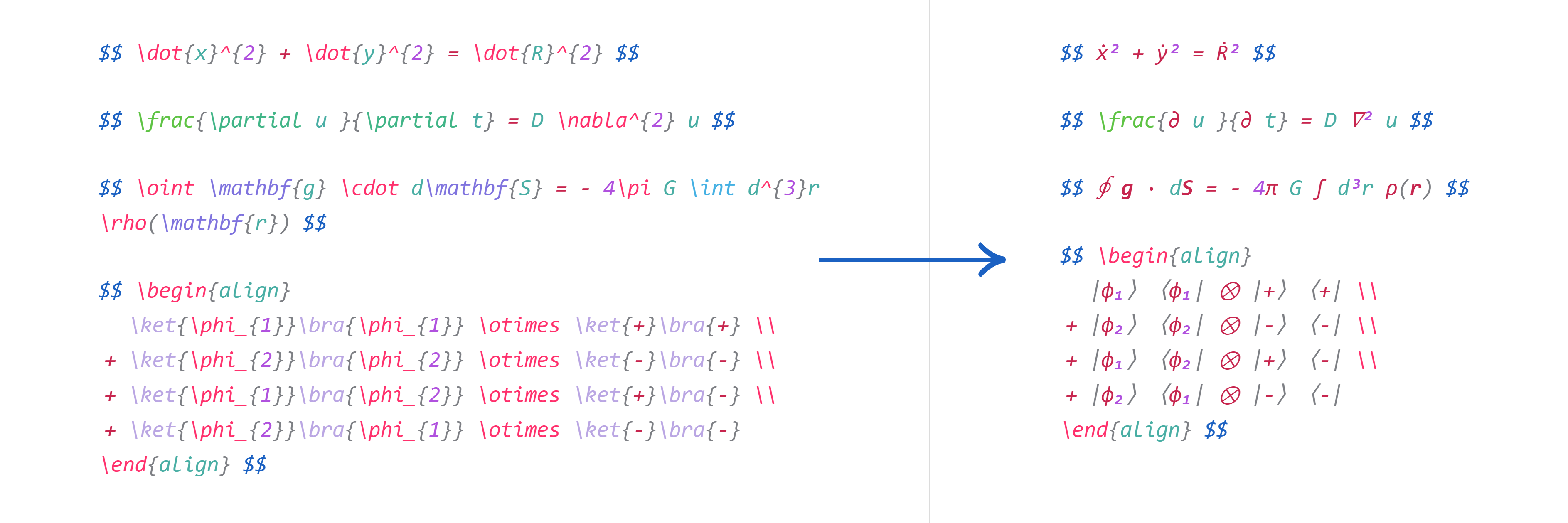
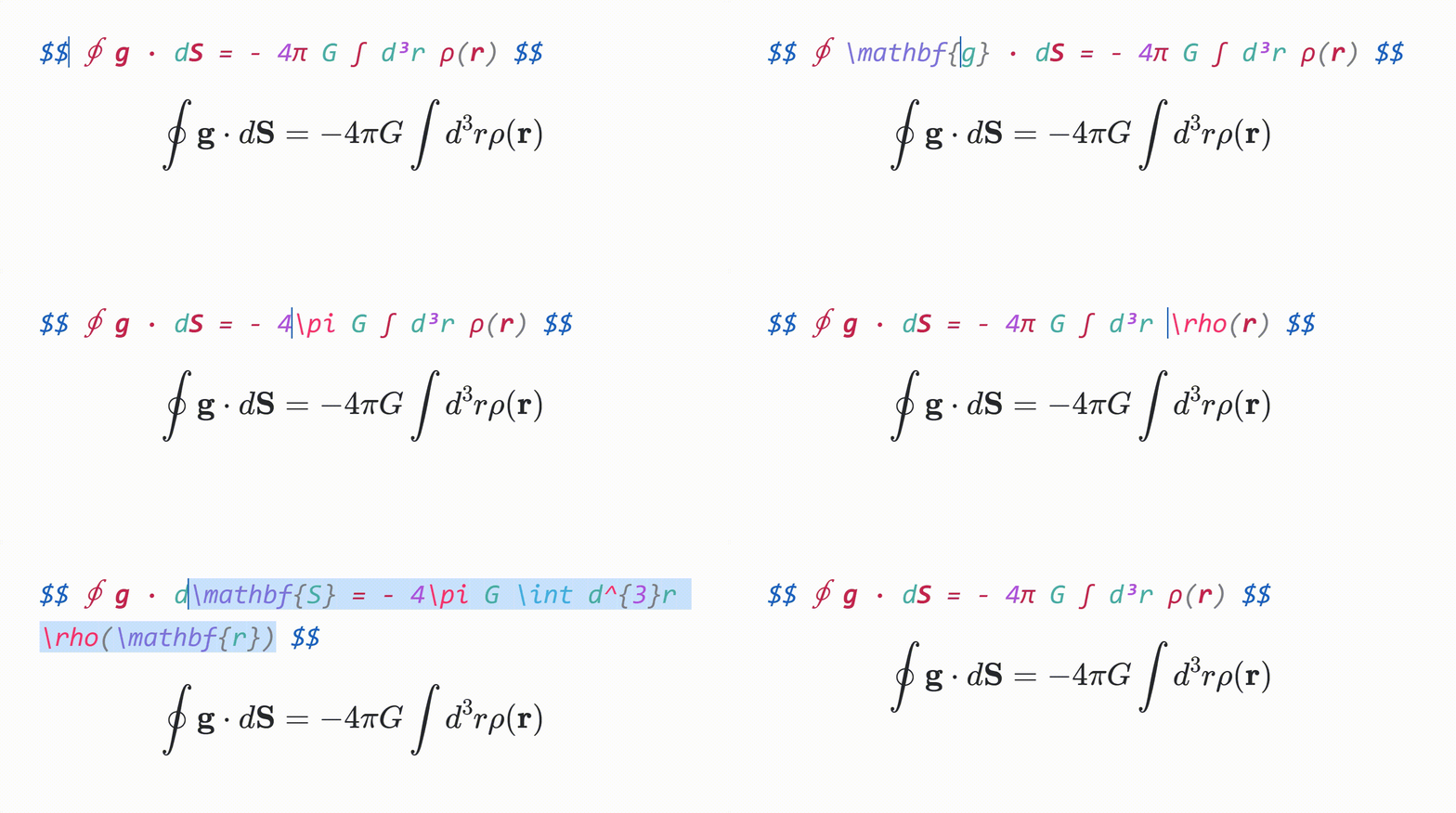
Make your equations more readable by hiding LaTeX code, instead rendering it in a pretty format.
通过隐藏 LaTeX 代码,而不是以漂亮的格式呈现它,使您的方程式更具可读性。
For example, “\dot{x}^{2} + \dot{y}^{2}” will be displayed as “ẋ² + ẏ²”.
例如,“\dot{x}^{2}+\dot{ẋ²+ẏ平方英寸。
To reveal the LaTeX code, move the cursor over it.
若要显示 LaTeX 代码,请将光标移动到该代码上。
Tabout
选项卡
-
Pressing Tab while the cursor is at the end of an equation will move the cursor outside the $ symbols.
当光标位于公式末尾时,按 Tab 键会将光标移动到 $ 符号之外。
-
Otherwise, pressing Tab will advance the cursor to the next closing bracket: ), ], }, >, or |.
否则,按 Tab 键将光标移动到下一个右括号:)、]、}、> 或 |。
Preview inline math
预览内联数学
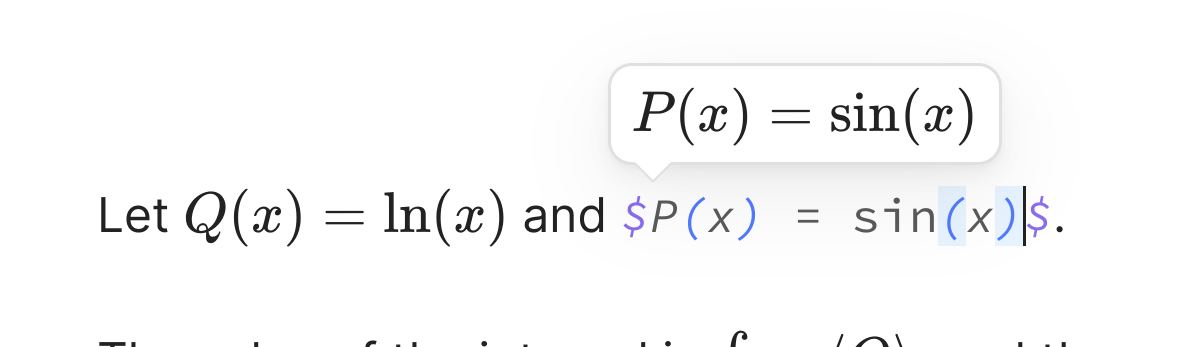
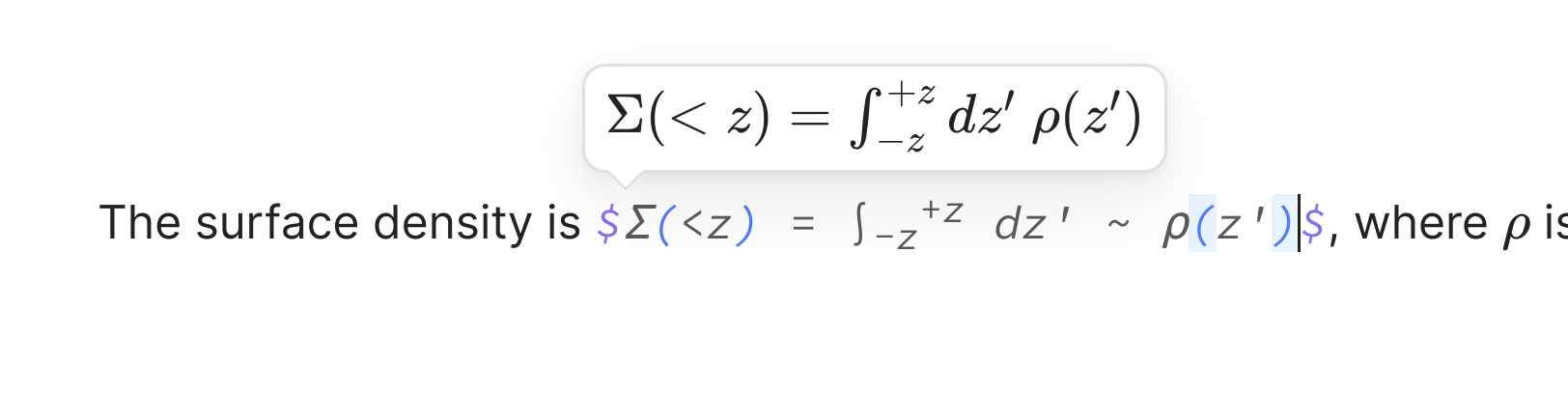
When the cursor is inside inline math, a popup window showing the rendered math will be displayed.
当光标位于内联数学中时,将显示一个显示渲染数学的弹出窗口。
Color & highlight matching brackets
颜色和突出显示匹配的括号
-
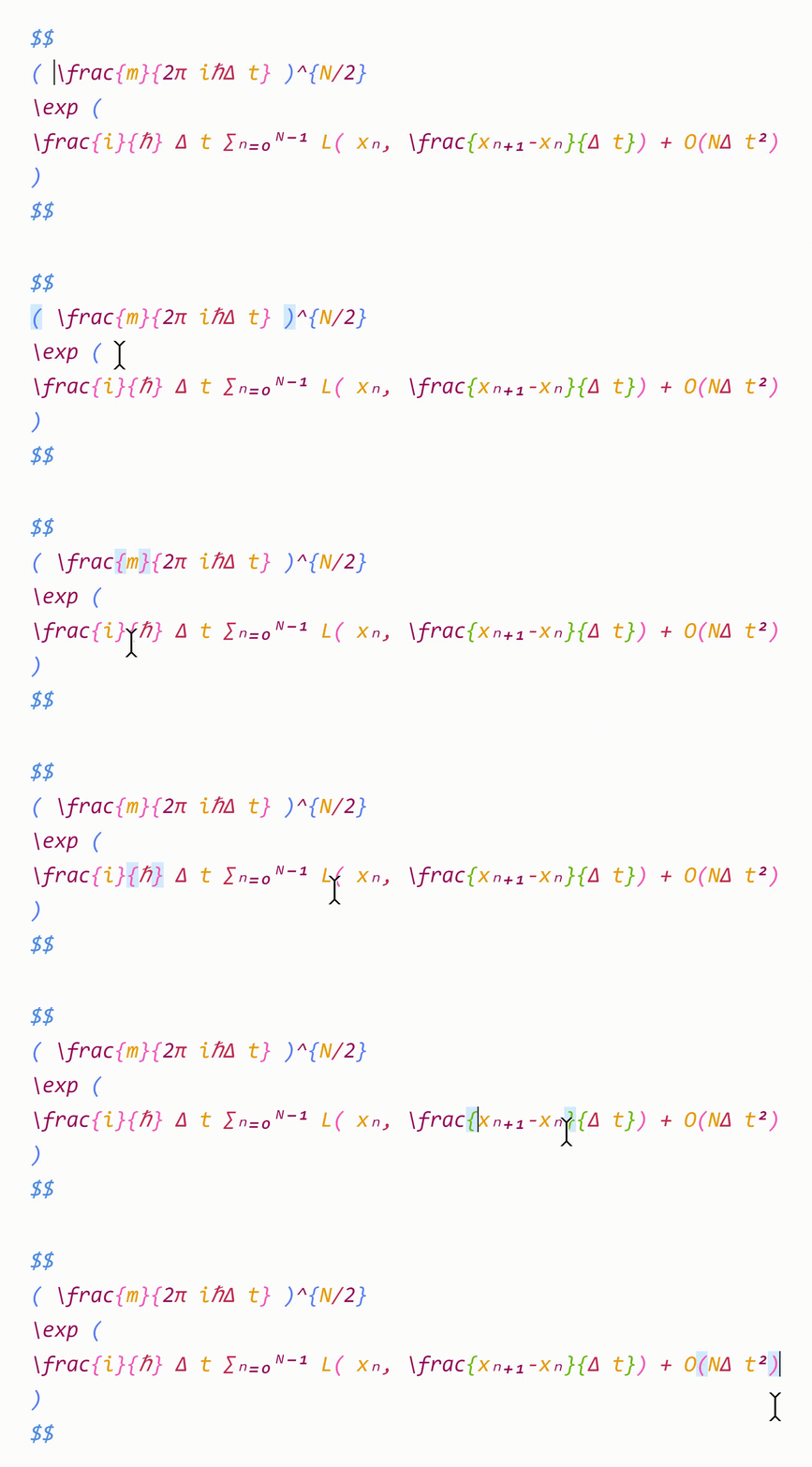
Matching brackets are rendered in the same color, to help with readability.
匹配的括号以相同的颜色呈现,以帮助提高可读性。
-
When the cursor is adjacent to a bracket, that bracket and its pair will be highlighted.
当光标与一个括号相邻时,该括号及其对将高亮显示。
-
When the cursor is inside brackets, the enclosing brackets will be highlighted.
当光标位于方括号内时,括号将高亮显示。
Visual snippets
可视化片段
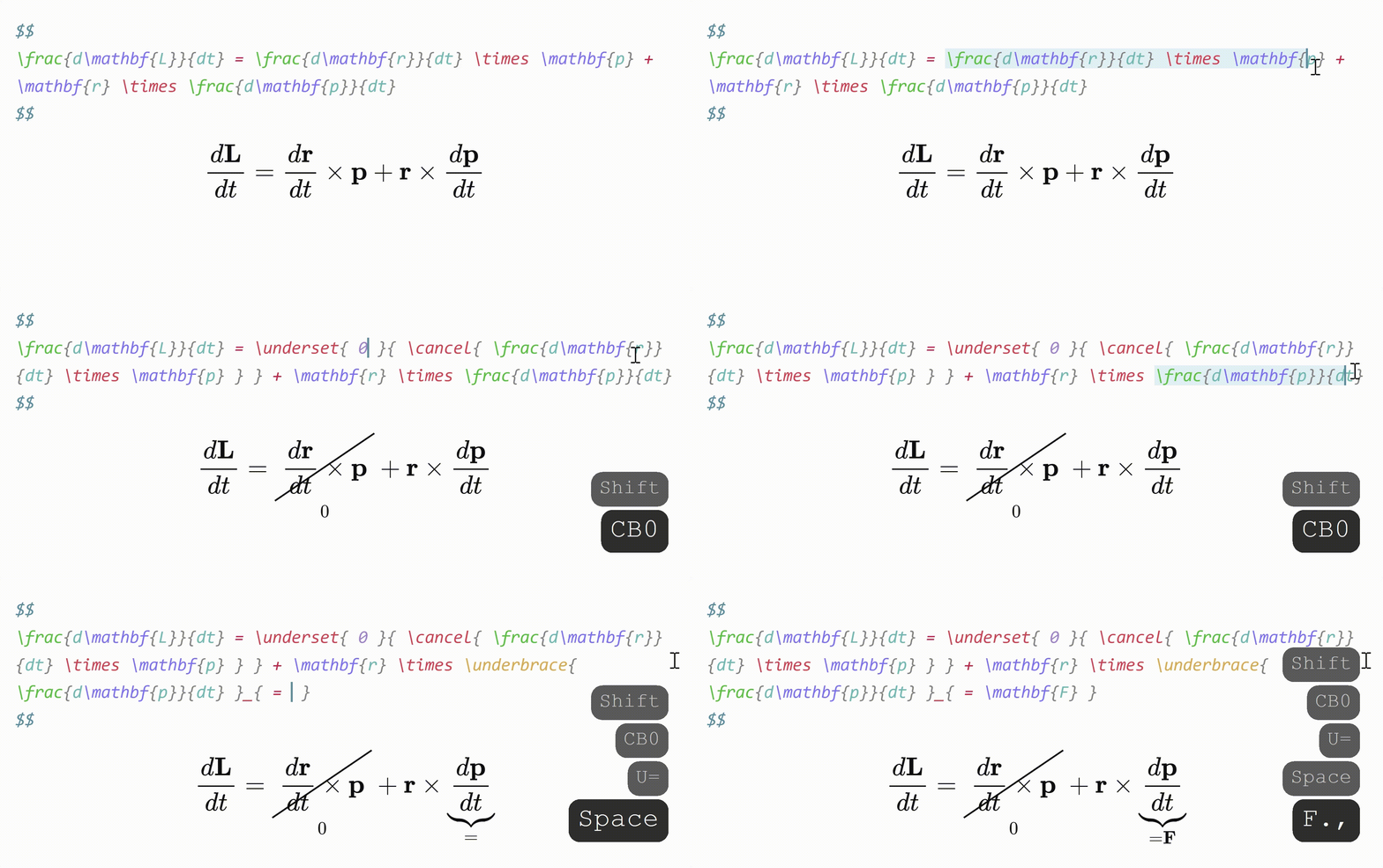
Sometimes you want to annotate math, or cancel or cross out terms. Selecting some math with the cursor and typing
有时你想注释数学,或者取消或划掉术语。用光标选择一些数学并键入
Sometimes you want to annotate mathematics, or cancel or cross out terminology. Select some mathematics with the cursor and type
有时你想注释数学,或者取消或划掉术语。用光标选择一些数学并键入
- “U” will surround it with “\underbrace”.
- “C” will surround it with “\cancel”.
- “K” will surround it with “\cancelto”.
- “B” will surround it with “\underset”.
Auto-enlarge brackets
自动放大括号
When a snippet containing “\sum”, “\int” or “\frac” is triggered, any enclosing brackets will be enlarged with “\left” and “\right”.
当包含 “\sum”、“/int” 或 “\frac” 的代码段被触发时,任何括号都将用 “\left” 和 “\right” 放大。

Editor commands
编辑器命令
-
Box current equation – surround the equation the cursor is currently in with a box.
方框当前方程式–用方框围绕光标当前所在的方程式。
-
Select current equation – select the equation the cursor is currently in.
选择当前方程式–选择光标当前所在的方程式。
Snippets
代码段
Snippets are formatted as follows:
代码段的格式如下:
{trigger: string, replacement: string, options: string, description?: string, priority?: number}
-
trigger: The text that triggers this snippet.触发器:触发此代码段的文本。
-
replacement: The text to replace thetriggerwith.replacement:用于替换触发器的文本。
-
options: See below.选项:请参见下文。
-
description(optional): A description for this snippet.description(可选):此代码段的描述。
-
priority(optional): This snippet’s priority. Defaults to 0. Snippets with higher priority are run first. Can be negative.priority(可选):此代码段的优先级。默认值为 0。优先级较高的代码段将首先运行。可以是负数。
Options
选项
-
m: Math mode. Only run this snippet inside mathm:数学模式。仅在数学中运行此片段
-
t: Text mode. Only run this snippet outside matht:文本模式。仅在数学之外运行此代码段
-
A: Auto. Expand this snippet as soon as the trigger is typed. If omitted, the Tab key must be pressed to expand the snippetA:自动。键入触发器后立即展开此代码段。如果省略,则必须按 Tab 键才能展开代码段
-
r: Regex. Thetriggerwill be treated as a regular expressionr:注册。触发器将被视为正则表达式
-
w: Word boundary. Only run this snippet when the trigger is preceded (and followed by) a word delimiter, such as.,,, or-.w:单词边界。仅当触发器前面(后面)有单词分隔符(如。,,或 -。
Insert tabstops for the cursor to jump to by writing “$0”, “$1”, etc. in the replacement.
通过在替换项中写入 “$0”、“$1” 等,插入要跳转到的光标的制表符。
For more details on writing snippets, including regex snippets, see the documentation here. You can view snippets written by others and share your own snippets here.
有关编写代码段(包括 regex 代码段)的更多详细信息,请参阅此处的文档。您可以在此处查看他人编写的片段并共享自己的片段。
备忘单
| Trigger | Replacement |
|---|---|
| mk | $ $ |
| dm | $$ $$ |
| sr | ^{2} |
| cb | ^{3} |
| rd | ^{ } |
| _ | _{ } |
| sq | \sqrt{ } |
| x/y Tab | \frac{x}{y} |
| // | \frac{}{} |
| te Tab | \text{ } |
| x1 | x_{1} |
| x,. | \mathbf{x} |
| x., | \mathbf{x} |
| xdot | \dot{x} |
| xhat | \hat{x} |
| xbar | \bar{x} |
| xvec | \vec{x} |
| xtilde | \tilde{x} |
| xund | \underline{x} |
| ee | e^{ } |
When running a snippet that moves the cursor inside brackets {}, press Tab to exit the brackets.
当运行将光标移动到方括号{}内的代码段时,请按 Tab 键退出方括号。
Greek letters
| Trigger | Replacement | Trigger | Replacement |
|---|---|---|---|
| @a | \alpha | eta | \eta |
| @b | \beta | mu | \mu |
| @g | \gamma | nu | \nu |
| @G | \Gamma | xi | \xi |
| @d | \delta | Xi | \Xi |
| @D | \Delta | pi | \pi |
| @e | \epsilon | Pi | \Pi |
| :e | \varepsilon | rho | \rho |
| @z | \zeta | tau | \tau |
| @t | \theta | phi | \phi |
| @T | \Theta | Phi | \Phi |
| @k | \kappa | chi | \chi |
| @l | \lambda | psi | \psi |
| @L | \Lambda | Psi | \Psi |
| @s | \sigma | ||
| @S | \Sigma | ||
| @o | \omega | ||
| ome | \omega |
For greek letters with short names (2-3 characters), just type their name, e.g. “pi” → “\pi”
对于名称较短的希腊字母(2-3 个字符),只需键入它们的名称,例如 “pi”→ “\pi”